Physical Address
304 North Cardinal St.
Dorchester Center, MA 02124
Physical Address
304 North Cardinal St.
Dorchester Center, MA 02124

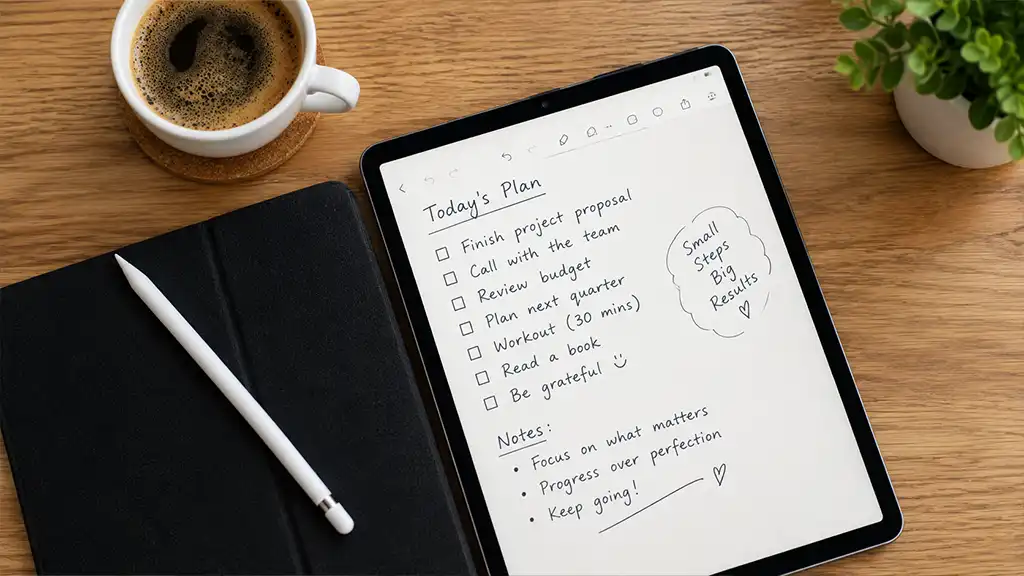
For a long time, I had plenty of notes but no real note-taking system. My desk was covered with notebooks, screenshots were scattered across my phone, unfinished Word files were buried in folders, and sticky notes surrounded my monitor. I could write down something useful during a lecture or client meeting and feel productive, only to spend days later trying to locate it.
The issue wasn’t a lack of note-taking. It was that my notes weren’t helping me retrieve, connect, or use what I had written.
That changed when I stopped thinking of note-taking as simply recording information and started treating it as a system. I’ve experimented with dozens of apps, discarded most of them, and eventually settled on a smaller group that genuinely improved how I study, plan, research, and work. Here are the apps that made the biggest difference for me in 2026, where each one works best, what limitations I’ve encountered, and how I combine them without creating another complicated productivity system.
| App | Best For | Free Plan |
| Notion | Study planning, projects, team wikis | Yes, for personal use |
| Obsidian | Connected, long-term knowledge | Yes, fully featured |
| Microsoft OneNote | Lecture notes and stylus work | Yes, 5GB OneDrive storage |
| Goodnotes / Notability | Handwriting and PDF annotation | Limited free versions |
| Google Keep | Fast notes and reminders | Yes, 15GB shared Google storage |
| NotebookLM | Studying from personal sources with AI | Yes, with usage limits |
| Apple Notes | Simple note-taking for Apple users | Yes, 5GB iCloud storage |
When I first tried Notion, I assumed it was another digital notebook. After about a week, I understood that it was more like a collection of flexible building blocks. A page can contain text, checklists, images, files, tables, and other elements, while pages can also be organized inside databases and displayed as tables, calendars, or Kanban boards.
For studying, that flexibility became extremely useful. I created a semester dashboard with a dedicated page for each course. Assignments went into a central database containing deadlines, status information, and links to the notes associated with each task. Instead of checking separate planners, task lists, and document folders, I could open one dashboard and see what required attention.
The same idea worked at the agency. Meeting notes connect to projects, my content calendar operates as a filterable database, and templates prevent me from rebuilding client briefs from scratch. Collaboration is another strength. Notion AI can summarize meetings and identify action items, although full AI access is included with the higher-priced Business plan.
Where it falls short: Notion’s flexibility can become a distraction. It is remarkably easy to spend hours designing an elaborate productivity system instead of completing the work that system was supposed to support. It is also primarily cloud-based, so a dependable connection is useful.
Pricing: Free for personal use. Plus starts at around $12 per user per month, while Notion AI is included with the Business plan, which was around $24 per user per month at the time of writing.
Best for: Students and professionals who want notes, projects, and tasks managed together.
If Notion helped organize my work, Obsidian changed the way I approached ideas. Every note is stored as a plain Markdown file on your own device, but the real strength is the linking system. By connecting one note to another, you can build relationships between concepts, and Obsidian can show those connections through backlinks and a visual graph.
That approach changed how I studied. Rather than keeping one enormous document for every lecture, I started creating smaller notes around individual concepts and connecting them. An economic theory could link to a case study, a relevant formula, and a related concept from another course. When exams approached, I wasn’t simply rereading pages. I was moving through a network of related ideas.
At work, Obsidian became my long-term knowledge repository for research, meeting notes, and lessons from completed projects. I also appreciate that the notes belong to me as ordinary files. There are no ads, and no account is required to access the files themselves. Since February 2025, its commercial license has also been optional, meaning Obsidian is free for both personal and professional use.
Where it falls short: Obsidian takes more time to learn than simpler note apps, and its community plugin ecosystem can become a distraction of its own. Multi-device syncing also requires either your own solution or a subscription to Obsidian Sync.
Pricing: Free for everyone, with optional paid services such as Sync and Publish.
Best for: Researchers, writers, lifelong learners, and people building a connected personal knowledge base.
OneNote was one of the first digital notebooks I used that actually behaved like a physical notebook. Its structure resembles a binder: notebooks contain sections, and sections contain pages. The pages themselves are open canvases, allowing you to type anywhere, insert pictures, record audio, or draw with a stylus.
That made OneNote particularly effective for lectures. I could bring in presentation slides, write annotations directly on them, and record audio when a subject was difficult. Because the page isn’t locked into a rigid layout, diagrams and handwritten explanations can sit beside typed material naturally.
It also fits especially well into workplaces already using Microsoft 365, where OneNote sits alongside tools such as Outlook, Teams, and Word.
Where it falls short: Without some organization, pages can become messy. Microsoft’s Copilot AI capabilities also require an eligible Microsoft subscription.
Pricing: Free, with storage using OneDrive’s included 5GB. Additional storage starts at $1.99 per month for 100GB.
Best for: Students looking for a capable free digital notebook and people already working inside Microsoft 365.
For years, I assumed typing was automatically better because it was faster. Then I came across research, including the frequently cited “The Pen Is Mightier Than the Keyboard” study, suggesting that handwritten notes can encourage students to summarize rather than transcribe information word for word.
I tried handwriting for an entire semester, and difficult subjects became easier for me to understand.
Goodnotes and Notability are what made that approach practical. Goodnotes resembles an unlimited collection of digital notebooks and includes templates for things such as planners and Cornell notes. It also provides strong PDF annotation and searchable handwriting.
Notability’s major advantage is synchronized audio. It can record a lecture while you write, and later you can select written material to hear what was being said at that point. During fast lectures, that feature can be particularly useful.
At work, I rely on handwriting for brainstorming, mind maps, and document markup—situations where typing can feel restrictive.
Where it falls short: You’ll need a compatible tablet and stylus, and both apps increasingly place their complete feature sets behind subscriptions.
Pricing: Both provide limited free versions with paid upgrades.
Best for: Visual learners, STEM students, and anyone who processes ideas more naturally with a pen.
Not every thought arrives at a convenient time. An idea that appears while waiting for a bus or in the middle of the night can disappear if capturing it takes too long. Google Keep is my solution for those moments.
It provides quick sticky-style notes, checklists, voice-note transcription, and reminders that can appear in Google Calendar. Its real advantage for me is integration. Keep is available through sidebars in Gmail, Docs, and Drive, making it easy to bring a quick note into the document or workflow where I need it.
Where it falls short: Keep is intentionally simple, which makes it a poor choice for lengthy notes or information requiring a complicated structure.
Pricing: Free with a Google account and uses the shared 15GB Google storage allowance.
Best for: Quick capture, lists, reminders, and Google Workspace users.
NotebookLM became part of my workflow faster than almost any other tool here. Google’s AI research assistant differs from a general chatbot because it works from the sources you provide, and its responses include citations pointing back to the relevant material.
For studying, I can upload lecture PDFs, assigned readings, and my own notes, then use them to generate flashcards, quizzes, study guides, or mind maps showing relationships between concepts.
The Audio Overview feature is another standout. It can turn a collection of readings into a podcast-style discussion that I can listen to while commuting.
At work, I use the same approach with long reports and documentation. Instead of reading everything from beginning to end before understanding the main points, I can get a briefing while retaining the ability to trace claims back to the supplied sources.
Where it falls short: NotebookLM can help explain and review information, but it does not replace your own thinking. Its citations should still be checked, and the free version has daily usage limits.
Pricing: Free with limits, including up to 50 sources per notebook. Paid Google AI plans increase those limits.
Best for: Exam preparation, literature reviews, and working through lengthy source material.
I used to dismiss Apple Notes as too basic. That view no longer fits the app. It now includes tags, smart folders, document scanning, handwriting, audio recording with live transcripts, and even mathematical problem-solving as you type.
For short meeting notes and personal lists, it is often the fastest choice because there is nothing to install or configure.
Where it falls short: Apple Notes is designed primarily for Apple’s ecosystem, although it can also be accessed through a browser using iCloud.
Pricing: Free with 5GB of iCloud storage.
Best for: Apple users who want a capable notes application without setup or complexity.
Honorable mention: Evernote was my first serious note-taking app and has received substantial modernization, but its free plan is now limited to 50 notes and one device. Anyone who prefers that traditional style can also consider the open-source Joplin as a free alternative.
You don’t need seven note-taking apps, and I certainly don’t use all seven every day. The breakthrough came when I stopped asking every app to do everything and assigned each one a specific responsibility.
Capture happens in Google Keep or Apple Notes, depending on which device is closest. Learning takes place in OneNote or Goodnotes during lectures and meetings. Connecting happens in Obsidian, where I rewrite important ideas in my own language and connect them to related notes. Planning belongs in Notion, where I keep projects and deadlines. Reviewing happens in NotebookLM, particularly when I’m preparing for an exam.
The habit holding everything together is a 20-minute weekly review. Every Sunday, I empty the quick-capture area, move useful information into its permanent location, and delete anything that no longer matters.
That short weekly routine improved my productivity more than constantly searching for another app.
Begin with the way you naturally learn. If handwriting helps you understand material, Goodnotes, Notability, or OneNote with a stylus are logical places to begin. If you prefer structured typing and databases, Notion may fit better. If your priority is creating a knowledge archive that you control, Obsidian is difficult to overlook.
Then look at the technology you already use. Apple users can get considerable mileage from Apple Notes. Google users have Keep and NotebookLM, while Microsoft 365 users can integrate OneNote naturally into their existing setup.
Most importantly, don’t install everything immediately. My biggest productivity mistake was constantly switching apps instead of developing a habit. Choose one, stick with it for a month, and only introduce another tool when you encounter a specific problem the first one cannot handle.
OneNote is a strong free all-purpose choice, while Notion works particularly well for organizing coursework. NotebookLM is useful for revision, and students using tablets should consider Goodnotes or Notability for handwritten material.
Research suggests handwriting can encourage deeper processing because you have to summarize information rather than record everything verbatim. Typing, meanwhile, is quicker and easier to search. A practical approach is to handwrite during lectures and create typed summaries afterward.
Not completely. AI is useful for summarizing, explaining, and generating quizzes, but writing information in your own words is part of the learning process. AI works best here as a review tool rather than a replacement for thinking.
A note-taking app won’t suddenly make you more intelligent or productive. A well-designed system can, however, prevent useful ideas from disappearing and make it easier to build on what you’ve already learned.
The best starting point is one app that matches the way you naturally think. Use it consistently, establish a simple review habit, and only add complexity when you have a genuine reason. When you eventually need that important note before an exam, meeting, or deadline, you’ll know exactly where to find it.